
Setting up your software
1. Sign in to your Softube account or create an account if you need one.
2. Add your iLok user ID to your Softube account (if you don't have an iLok user ID, we can help you make one).
3. Register the Flow® Studio license found in your Flow® Studio box under My Products (click "Register a new license" at the top of the page).
4. Download our all-in-one installer, Softube Central, then install and activate your new Flow® Studio Suite software.
5. Connect your Flow Studio hardware, start the Softube On-Screen-Display application, and then your DAW of choice.
6. Read the guide below to learn more about using your Flow® Studio hardware and software in a session.
Your first Flow® Studio session
So, you’re new to Flow Studio. Please follow these steps to get started.
-
Place the Flow® Mixing Suite plug-in as an insert on any track or bus on which you want to use Flow Studio. If it’s a mono track, insert the plug-in as “Mono to Stereo” or “Stereo.”
-
Press Track and use the Omni Knob at the center of the unit to select the track you'll work on. Then press OK.
-
Press Flow and select a signal chain that fits your track by pressing OK.
That’s all you need to get started! The next step is to hit play and start working.
-
Turn the Omni Knob. This activates all parts of the signal chain – the result should be obvious and immediate!
-
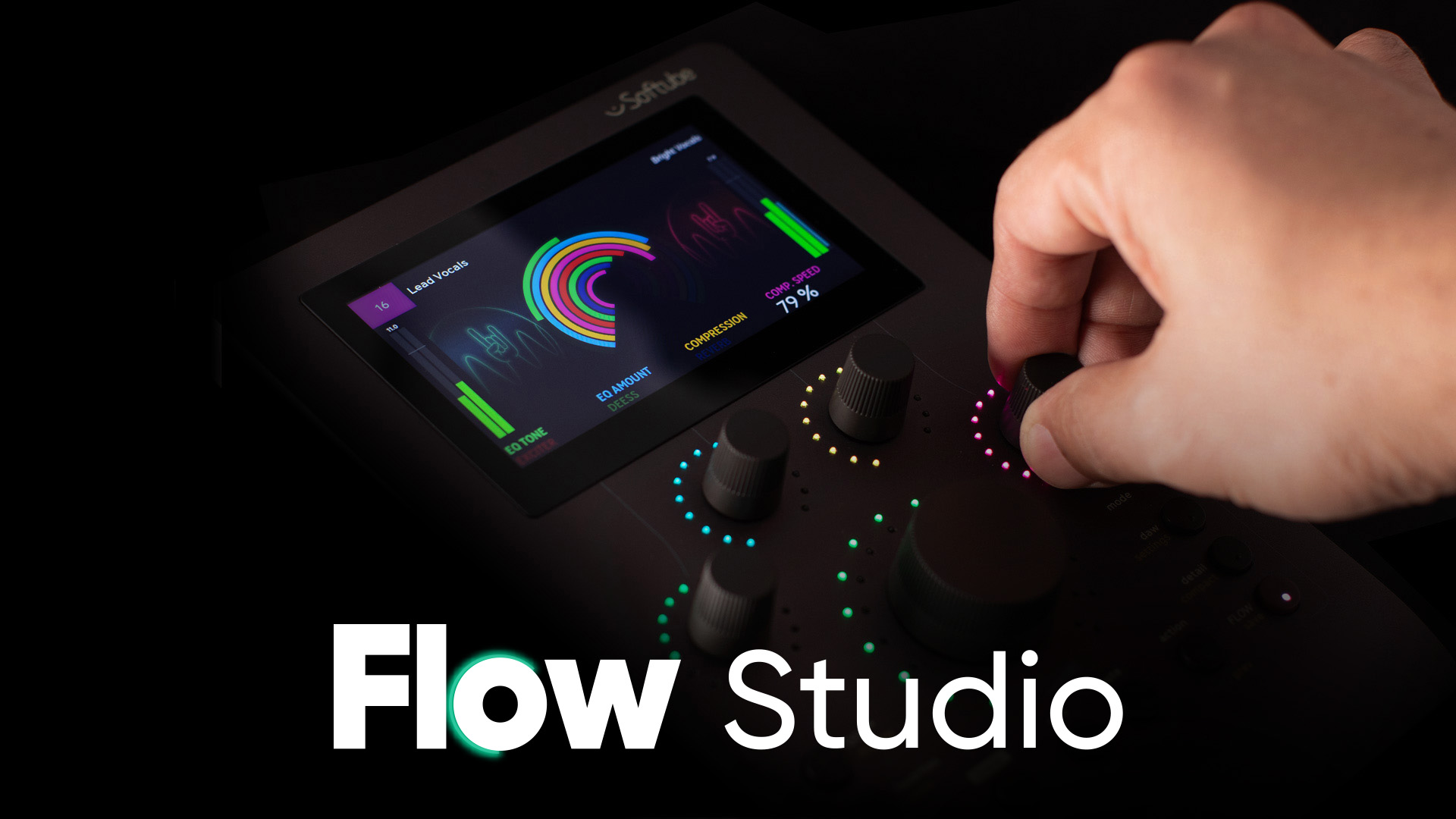
Turn the four Flow Controls to your liking. These control distinct parts of the signal chain according to their label at the bottom of the Flow Studio screen. Press Shift to change the Flow Controls to the second layer of controls.
-
The Action button lets you choose the mode for the Omni Knob. If you need to adjust Input or Output Volume, hit Action and adjust the volume.
-
If you want to hear more clearly what your track sounds like after adjustments, press Solo to listen only to your selected track.
-
You don’t have to open the plug-in window. It’s enough to simply place it on the track to control it through the hardware.
-
Select another track and keep on going!
You should always use the VST3 version of the plug-in unless you are using Logic Pro (AU) or Pro Tools (AAX).