Flow Studio
The ultimate control surface for the busy music producer.


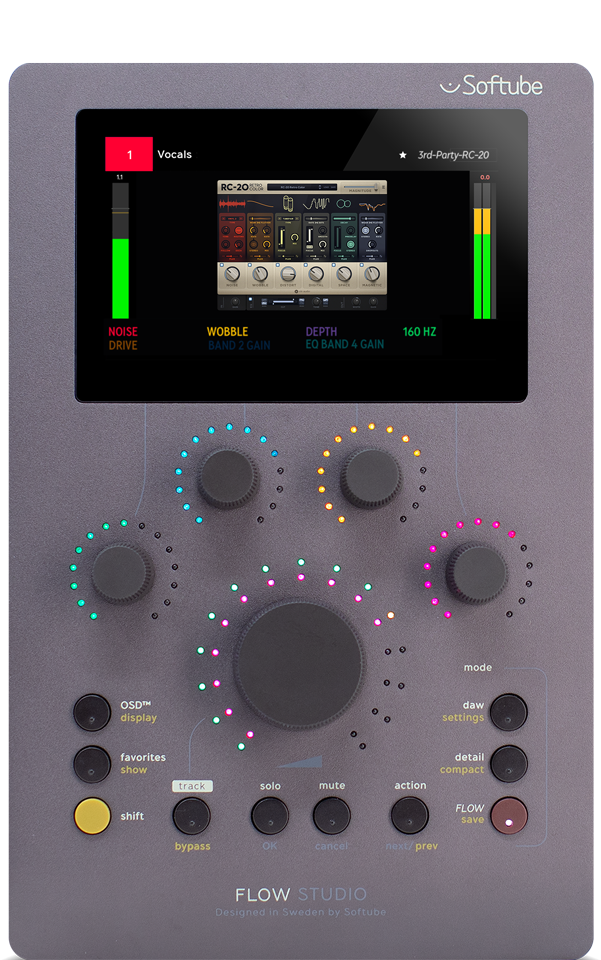
Flow® Studio now gives you hands-on control over VST3 plug-ins, bringing your favorite production tools into the world of Flow.


Third-party VST3 support: use compatible VST3 plug-ins from other developers with Flow Studio and the Flow Mixing Suite plug-in
Hands-on control: adjust third-party plug-in parameters directly from your Flow Studio hardware
Single Plug-in Flows: load and control individual third-party plug-ins
Free update: available to existing Flow Studio owners and Flow Mixing Suite subscribers at no additional cost.
| FabFilter | Pro-Q 4 |
| FabFilter | Saturn 2 |
| Neural DSP | Mantra |
| oeksound | soothe3 |
| oeksound | bloom |
| Plugin Alliance | Black Box Analog Design HG-2 |
| Plugin Alliance | Black Box Analog Design HG-2MS |
| Plugin Alliance | bx_subsynth |
| Plugin Alliance | Maag EQ4 |
| Plugin Alliance | Maag EQ4 MS |
| Plugin Alliance | Purple Audio MC 77 |
| Plugin Alliance | Shadow Hills Class A Mastering Comp |
| Plugin Alliance | Shadow Hills Mastering Compressor |
| Plugin Alliance | SPL Machine Head |
| Safari Audio | Bull Sub Machine V2 |
| Safari Audio | Camel Strip V2 |
| Safari Audio | Cobra Fuzz V2 |
| Safari Audio | Cosmic Parrot Echo |
| Safari Audio | Flamingo Verb |
| Safari Audio | Flamingo Verb V2 |
| Safari Audio | Fox Echo Chorus V2 |
| Safari Audio | Gorilla Drive |
| Safari Audio | Gorilla Drive V2 |
| Safari Audio | Lion Master |
| Safari Audio | Mastering Console V2 |
| Safari Audio | Noam’s Mastering Console |
| Safari Audio | Owl Control |
| Safari Audio | Rabbit Tape V2 |
| Safari Audio | Silver Llama Amp |
| Safari Audio | Sun Bear Bus Compressor |
| Safari Audio | The Herd V2 |
| Safari Audio | Time Machine V2 |
| Soundtoys | Decapitator |
| Soundtoys | EchoBoy |
| Soundtoys | EchoBoy Jr. |
| Soundtoys | Little AlterBoy |
| Soundtoys | Little Plate |
| Universal Audio | UADx 1176 AE |
| Universal Audio | UADx 1176 Classic FET Compressor |
| Universal Audio | UADx 1176 LN Rev E |
| Universal Audio | UADx 1176 Rev A |
| Universal Audio | UADx EMT 250 Electronic Reverberator |
| Universal Audio | UADx Empirical Labs Distressor |
| Universal Audio | UADx Lexicon 224 Digital Reverb |
| Universal Audio | UADx Teletronix LA-2 |
| Universal Audio | UADx Teletronix LA-2A Gray |
| Universal Audio | UADx Teletronix LA-2A Silver |
| Universal Audio | UADx Teletronix LA-2A Tube |
| Valhalla DSP | VintageVerb |
| XLN Audio | DB-30 Drum Butter |
| XLN Audio | RC-20 Retro Color |


Getting started with third-party plug-ins in Flow is easy
1. Update the Flow Mixing Suite plug-in to the latest version using Softube Central.
2. Open the Flow Mixing Suite plug-in in your DAW.
3. Click the + button and select SCAN THIRD-PARTY PLUG-INS.
4. Click to scan for VST3 plug-ins.
5. Load a compatible plug-in into your Flow with the plus sign and start controlling it from Flow Studio.

The Flow Mixing Suite plug-in will automatically capture and display GUI screenshots of your third-party plug-ins, so you can quickly see what plug-in you are controlling. Support for this feature varies depending on OS, DAW, and plug-in.
The first time you open a third-party plug-in, the Flow Mixing Suite plug-in will attempt to create a thumbnail of the plug-in GUI. Your DAW may ask for screen recording permission, which is required for this feature to work.
Simply touch a knob on Flow Studio that controls a third-party plug-in parameter, and the plug-in GUI will appear both on the hardware screen and in the Flow Mixing Suite plug-in.
If you need to capture a new screenshot, simply click the camera icon under the VST3 plug-in in the signal chain.
First, make sure you're running the latest version of the Flow Mixing Suite plug-in and that you have successfully scanned your VST3 plug-ins.
Then, try loading a third-party plug-in into a Flow or opening a Single Plug-in Flow directly from Flow Studio.
If the screenshot still does not appear, check that your DAW has permission to record your screen.
Your DAW needs screen recording permission to capture third-party plug-in thumbnails.
When the Flow Mixing Suite plug-in first attempts to capture a screenshot, your operating system may prompt you for screen recording permission.
If you have denied permission previously, you may need to enable it manually.
On macOS:
1. Open System Settings.
2. Go to Privacy & Security > Screen & System Audio Recording.
3. Find your DAW in the list and enable permission.
4. Restart your DAW if required.
This release adds support for a selection of third-party plug-ins by brands that Softube has worked closely with to ensure that the implementation is as smooth as possible. However, you can enable the Flow Mixing Suite plug-in to scan all installed VST3 plug-ins. A small word of warning though, this will scan plug-ins that might not work well in the Flow Mixing Suite plug-in, and the scanning can take a long time depending on the number of installed plug-ins. Compatibility may vary depending on the plug-in.
Yes. Third-party Plug-in Support lets you use compatible VST3 plug-ins you already own. It does not include licenses for third-party plug-ins.
Yes. Third-party Plug-in Support is included as a free update for Flow Studio owners and Flow Mixing Suite subscribers.

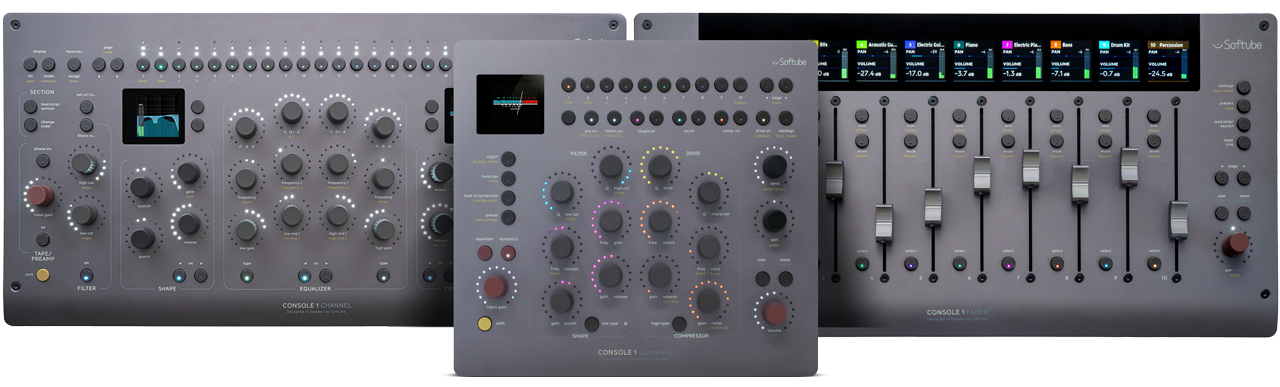
Get ready to put even more possibilities at your fingertips with greatly expanded third-party VST3 plug-in support for your Console 1 hardware. Stay tuned via our newsletter to learn more.
Sign up here